
The first time I opened Roblox Studio, I stared at the screen for about ten minutes, clicked a few things, accidentally deleted the baseplate, panicked, couldn’t figure out how to undo it, and closed the whole program.
I came back the next day. And the day after that. And somewhere around day four, something clicked — I placed a part, moved it exactly where I wanted it, ran the game, jumped on it, and thought: oh, I actually just made something.
That feeling is worth getting to. And the path there is a lot less intimidating than that first screen makes it look.
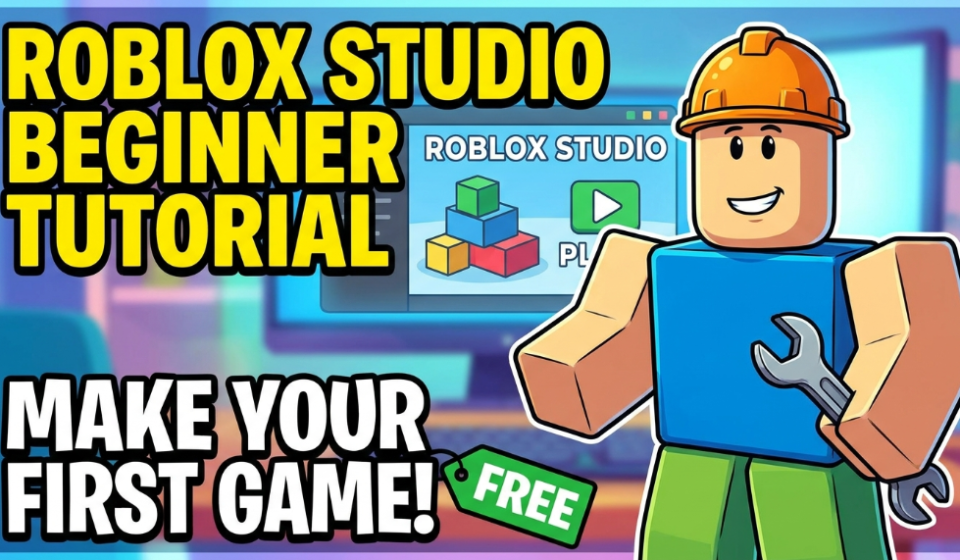
This tutorial is for complete beginners — people who’ve never opened Roblox Studio, or who opened it once and immediately felt overwhelmed. By the end, you’ll have a simple but real, playable game published on Roblox. Free. No coding required for the basics, though I’ll point you toward scripting resources when you’re ready.
What Is Roblox Studio, Exactly?
Roblox Studio is the free game-creation tool that Roblox provides to anyone with an account. Every single game on Roblox — Adopt Me, Brookhaven, Tower of Hell, all of them — was built in Roblox Studio.
It runs on Windows and Mac. It’s free to download. You don’t need a Premium subscription to build and publish games.
The interface looks a bit like a 3D modeling program crossed with a code editor, which is exactly what it is. But you don’t need to use the code editor to get started — you can build a complete basic game using just the visual tools.
Step 1 — Download and Install Roblox Studio
Go to create.roblox.com and sign in with your Roblox account (create one for free if you don’t have one).
Click Start Creating. This will prompt you to download and install Roblox Studio. The installer is straightforward — just run it and follow the steps.
Once installed, Studio opens to a template selection screen. This is where your first game starts.
Choose the “Baseplate” template for this tutorial. It gives you a flat grey platform and nothing else — a clean slate that’s easier to work with than the more complex starter templates.
Step 2 — Get Familiar With the Interface (Don’t Skip This)
I know it’s tempting to just start placing things. Do spend five minutes on orientation first — it will save you a lot of frustration.
Here’s what you’re looking at:
The Viewport — The big 3D window in the middle. This is your game world. You build here.
Explorer Panel (usually on the right) — A list of everything in your game: the baseplate, the lighting, the camera, all the parts you create. Think of it as a file tree for your game’s contents.
Properties Panel (below Explorer) — When you click on something in the game world or Explorer, its properties show up here. Size, color, position, whether it’s anchored — all configurable.
Toolbar (across the top) — Move, Scale, Rotate, and other tools for manipulating objects. You’ll use these constantly.
If you can’t see Explorer or Properties: Go to View in the top menu bar and enable them. Studio sometimes opens with panels hidden.
Navigation in the viewport:
- Hold right-click and drag to rotate the camera
- Hold right-click + WASD to fly around like a first-person game
- Scroll the mouse wheel to zoom in and out
- Middle-click and drag to pan
Spend literally two minutes just flying around the empty baseplate. Getting comfortable with camera movement is the single thing that makes everything else easier.
Step 3 — Place Your First Parts
In Roblox Studio, everything in the game world is made of Parts — 3D blocks, spheres, cylinders, and wedges that you combine to build structures.
To insert a part:
- Click the Home tab in the top toolbar
- Click Part → choose Block (the basic cube shape)
- A grey block appears in the middle of your viewport
Now let’s move it:
- Press W on your keyboard (or click the Move tool in the toolbar — it looks like arrows)
- Click on your block — colored arrows appear
- Drag the arrows to move the block along each axis (red = X, green = Y, blue = Z)
To resize it:
- Press R (or click the Scale tool)
- Drag the colored handles that appear to stretch or shrink the block
To rotate it:
- Press E (or click the Rotate tool)
- Drag the colored rings to spin it
These three keys — W (Move), E (Rotate), R (Scale) — are the shortcuts you’ll use more than anything else in Studio. Learn them early.
Step 4 — Build a Simple Obstacle Course (Obby)
The easiest first game to build is an obstacle course — called an “obby” in Roblox culture. Players jump between platforms, navigate obstacles, and try to reach the end. They’re simple to build, fun to play, and genuinely popular on the platform.
Here’s how to build a basic one:
Create your starting platform:
- Insert a Block part
- Scale it to roughly 10 studs wide, 1 stud tall, and 10 studs deep (check the Size property in the Properties panel)
- Position it near the center of the baseplate
Anchor it:
- In the Properties panel, find the Anchored checkbox and tick it
- Anchored parts don’t fall due to gravity — critical for any platform players stand on
- If you forget this, your platforms will fall through the baseplate the moment the game runs
Create the first obstacle — a gap:
- Insert another Block and position it a few studs away from your starting platform, requiring a jump to reach
Add more platforms:
- Keep inserting, scaling, and positioning blocks at varying heights and distances
- Vary the size of the gaps to create easy, medium, and hard jumps
- Use wedges to create ramps
- Rotate parts at angles for diagonal platforms
Add color:
- Select a part, go to Properties, find BrickColor or Color, and change it
- Color-coding difficulty (green = easy, yellow = medium, red = hard) is a nice touch players appreciate
The end goal:
- Place a large, distinctive platform at the end — make it bright gold or neon green so it reads clearly as the finish line
- You can add a “Stage” label later with scripting, but visually marking the finish works fine for a first game
Step 5 — Add a Spawn Location
Without a SpawnLocation, players won’t know where to appear when the game starts.
- In the Explorer panel, look for StarterPlayer → you don’t need to touch this yet
- Go to Model tab in the toolbar → click Spawn Location
- A green-and-white checkered block appears — this is where players start
- Move it to your starting platform position
The SpawnLocation should sit right at the beginning of your obby, level with the surface of your first platform.
Step 6 — Playtest Your Game
This is the fun part.
Click the Play button in the toolbar (the green triangle). Studio switches into playtest mode — your avatar appears, and you can actually run, jump, and move through your creation.
Walk to the obby. Try to complete it. You’ll immediately discover:
- Gaps that are too wide or too narrow
- Platforms that are too small to land on
- Awkward camera angles that make jumps harder than intended
- Parts you forgot to anchor (they’ll fall)
Press Stop (the red square) to exit playtest mode. Fix what you found. Playtest again. Repeat until it feels right.
This iteration loop — build, playtest, fix, repeat — is the actual process of game development. Every developer does this, at every level. Getting comfortable with it early is more valuable than any specific technique.
Step 7 — Publish Your Game
When you’re happy with your obby (or happy enough — you can always update it later):
- Go to File → Publish to Roblox
- Give your game a name (“My First Obby” is fine)
- Write a short description
- Set it to Public if you want others to find it
- Click Create
Your game is now live on Roblox. Anyone can search for it and play it. Share the link with friends or family — having real people play something you built is a genuinely satisfying feeling.
Common Beginner Mistakes
Forgetting to anchor parts. You will do this at least once. Your lovingly designed platform will fall into the void the moment you hit Play. The fix: select all your parts (Ctrl+A) and check Anchored in Properties — it’ll apply to everything selected.
Making gaps too wide. Roblox’s default jump distance is somewhat forgiving, but beginners consistently misjudge it. Playtest every jump yourself before calling it done.
Building without playtesting. Spending an hour building before you test anything means spending an hour fixing problems you’d have caught in the first five minutes. Test early, test often.
Trying to script too soon. Scripting (writing Lua code) is where a lot of beginners get frustrated and quit. You don’t need it to build a complete, publishable game. Get comfortable with the building tools first. There’s plenty of time for scripting once the rest feels natural.
Ignoring the lighting. Your game’s default lighting might look fine in the editor but washed-out or too dark in-game. Under the Explorer panel, click Lighting and experiment with the Ambient and Brightness settings. Small adjustments make a visible difference.
Where to Go From Here
Once your first obby is done and published, here’s the natural next step progression:
Learn about Terrain — Studio has a terrain editor that lets you sculpt hills, water, and landscapes instead of flat baseplates. It makes games look dramatically more polished.
Explore the Toolbox — The Toolbox (View → Toolbox) gives you access to thousands of free models and assets made by the Roblox community. You can drop in trees, buildings, cars, and props without building everything from scratch.
Start learning Lua scripting — When you’re ready to add scoring, checkpoints, timers, or anything that reacts to player actions, you need scripts. YouTube channels like TheDevKing and AlvinBlox have excellent free beginner scripting tutorials specifically for Roblox Studio. Both explain things clearly without assuming prior coding knowledge.
Join the Roblox Developer Forum — devforum.roblox.com is where the Roblox developer community lives. There are beginner sections, tutorials, and people willing to help with specific problems. It’s genuinely one of the friendlier developer communities out there.
The Honest Part About Getting Good
Your first game will probably not be amazing. Mine wasn’t. Most people’s aren’t.
That’s completely fine. The point of the first game isn’t to make something popular — it’s to finish something. To go from empty baseplate to published, playable experience. That process teaches you more than any tutorial can, because you run into your own specific problems and have to figure them out.
The developers behind the biggest games on Roblox all started with a rough obby or a basic simulator that three people played. The difference between them and everyone who gave up is just that they kept building the next thing.
Open Studio. Pick the Baseplate template. Place a block. Move it somewhere. That’s all it takes to start.
Built your first game and want to share it? Drop the link in the comments — always happy to give feedback on a first project.